Demonstration
The following demontration, Video 1: Demo: Example output from a virtual camera. , shows the video created from a virtual camera. The virtual camera is attached to a frame, fixed to vehicle.
Motivation
At first, I recorded the screen during experiments, but this was not a good solution because:
- process it’s more complex to setup,
- it uses too many resources,
- the video quality is low,
- I must keep the window and RViz view in the same place.
…I need a better solution.
Idea
RViz2 is a visualization tool in ROS 2 commonly used for inspecting and debugging robot data streams. It can display camera feeds, markers, and 3D data, but it does not natively provide the ability to publish its rendered views as image topics, especially from fixed or custom virtual viewpoints. The idea it’s to develop a Rviz2 plugin allowing to get the render image, created by RViZ2.
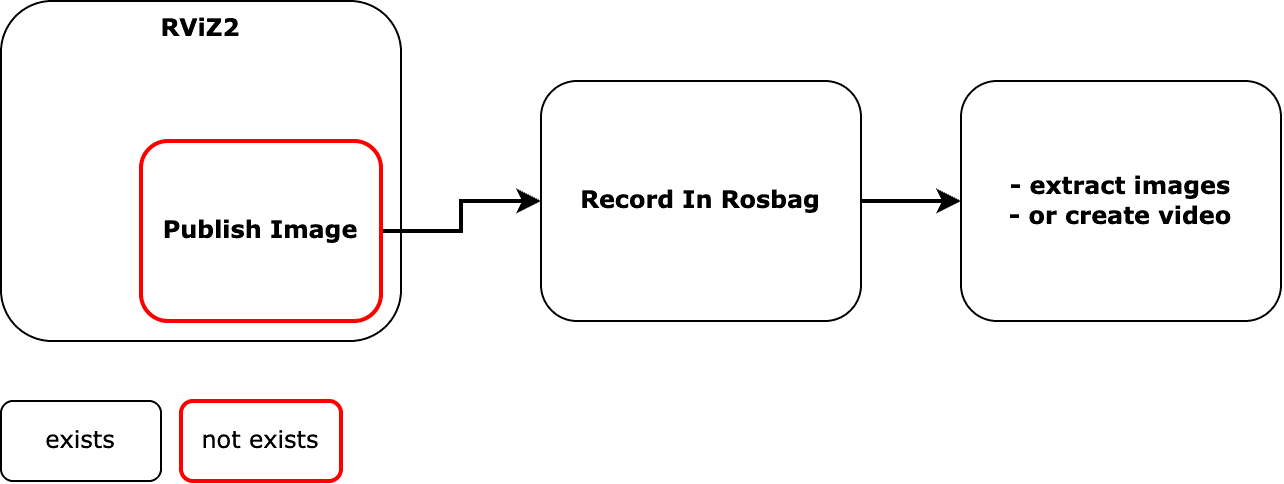
As shown by the Fig. 1 , the idea it’s to publish the render image over ROS2 topic and record the image using rosbag.
Implementation
A custom RViz2 plugin was developed to add a virtual camera directly into the RViz rendering pipeline.
This virtual camera functions as a ROS 2 image publisher, continuously providing images from a configurable point of view.
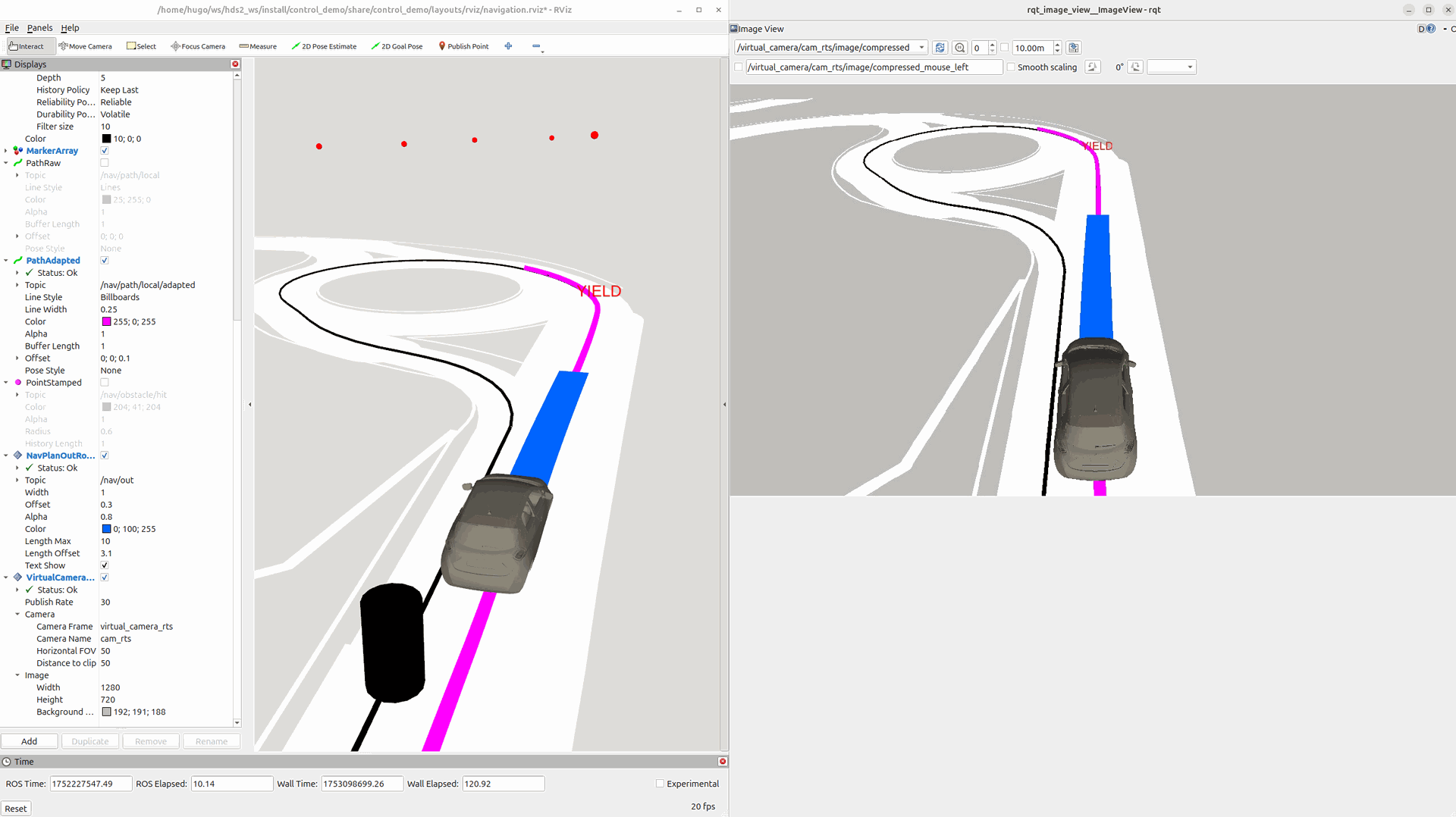
The Fig. 2 allows recording and analyzing rendered perspectives without manual screen capture or the need to replicate the viewpoint.
Features
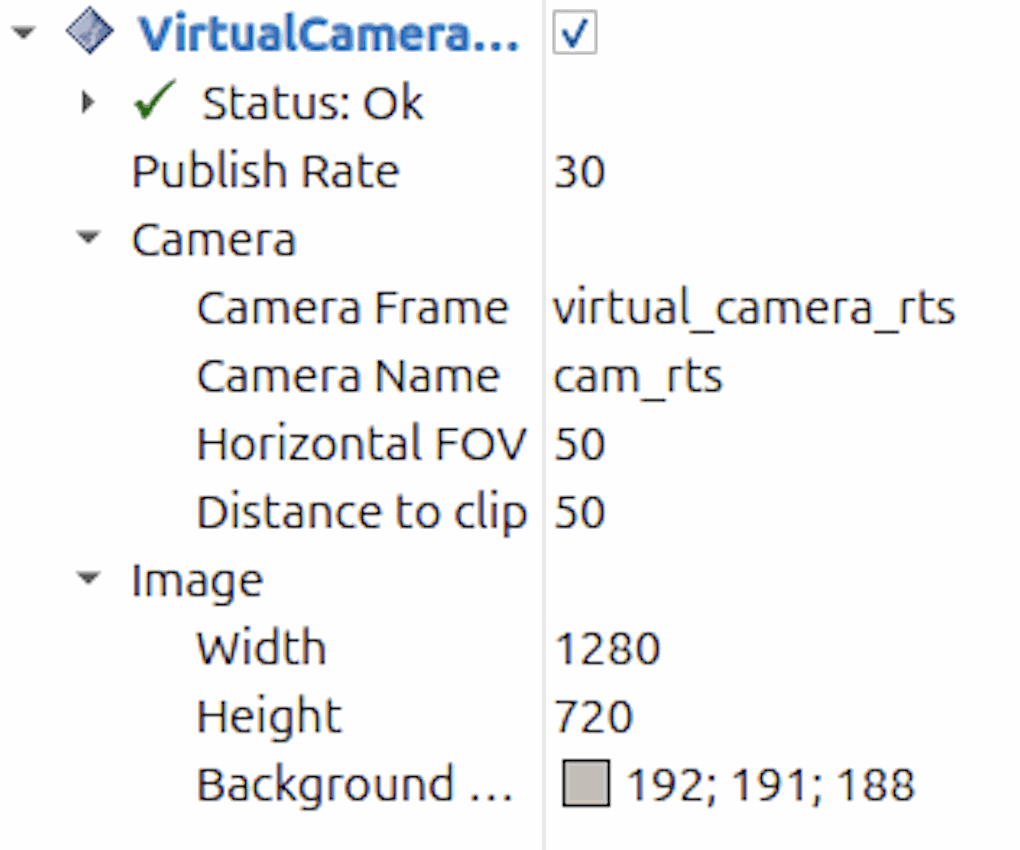
The virtual camera supports the following configurable parameters:
- Camera Name – Used for topic naming and identification
- Attached Frame – TF frame to which the camera is linked (e.g.,
/map,/base_link) - Field of View – Horizontal field of view in degrees
- Clipping Planes – Near and far clip distances
- Background Color – Adjustable to match the scene or remove distractions
- Image Resolution – Width and height of the output image
These settings can be changed during runtime in RViz. The plugin can be included in existing RViz configurations or launch files for automated workflows.